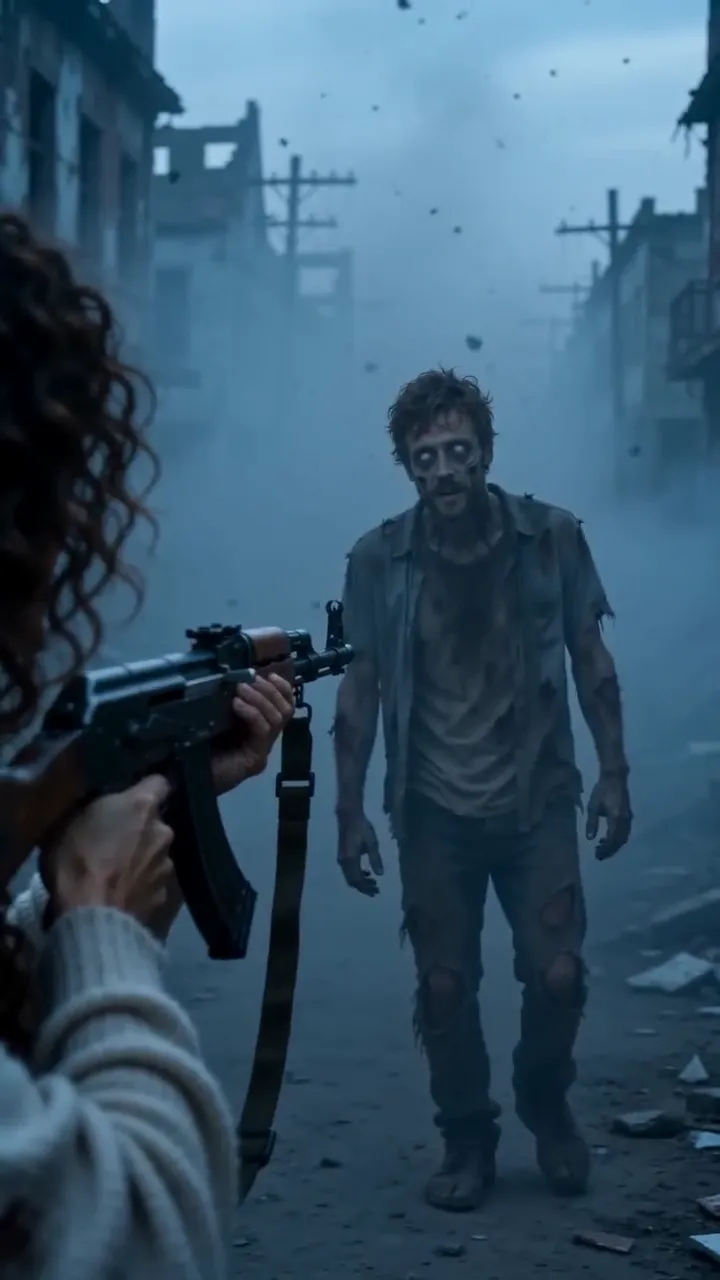
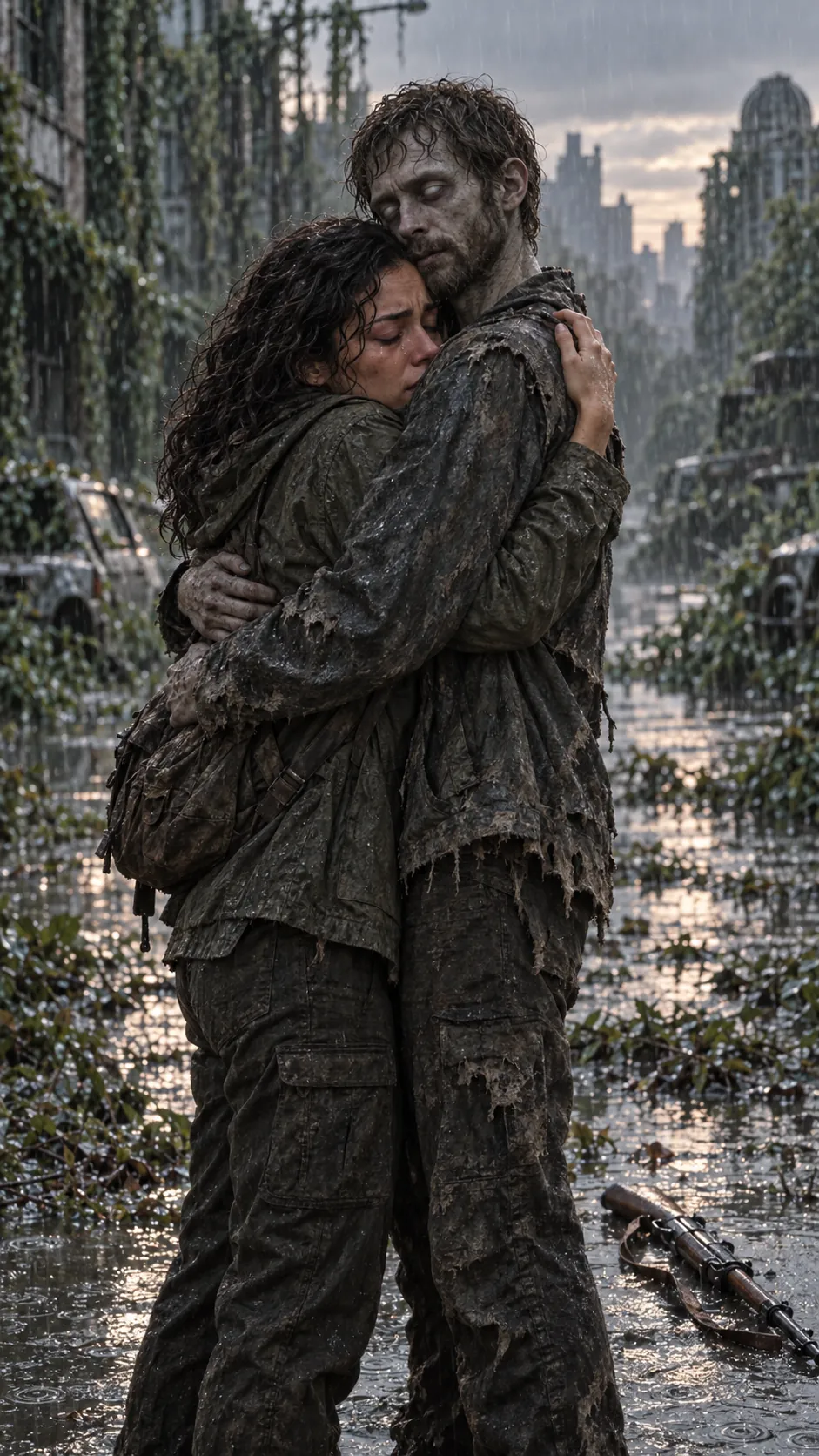
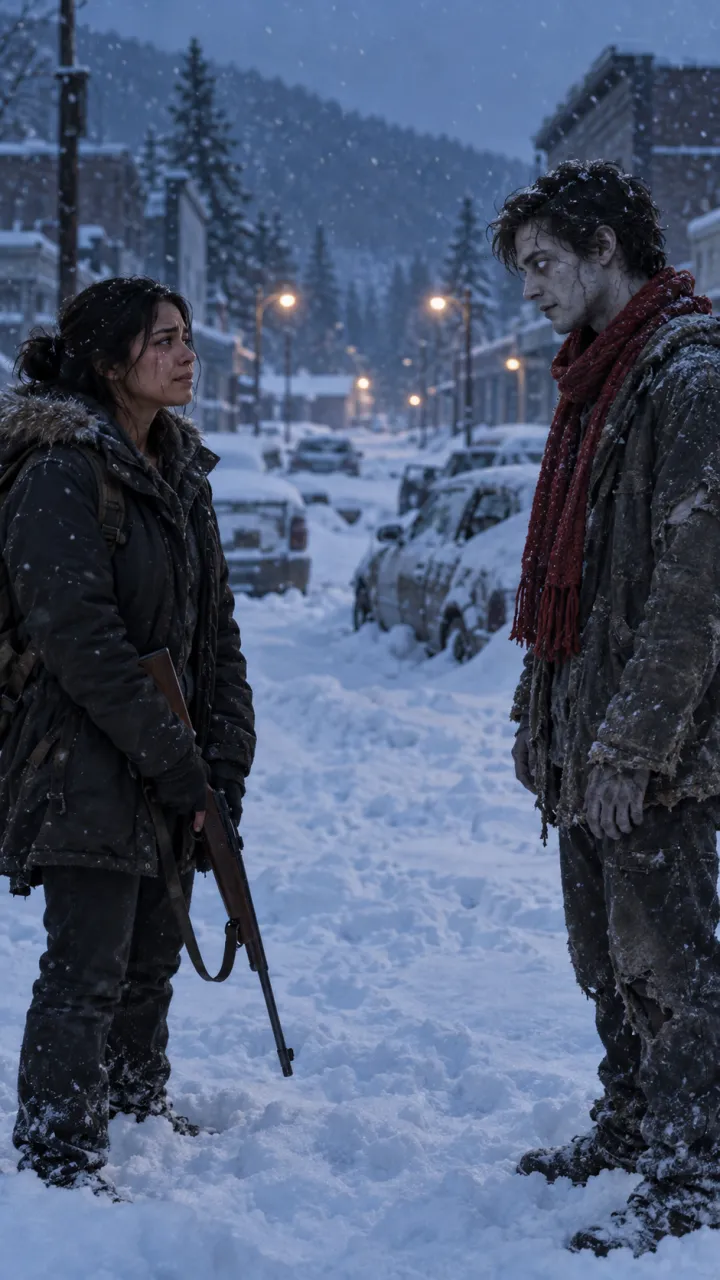
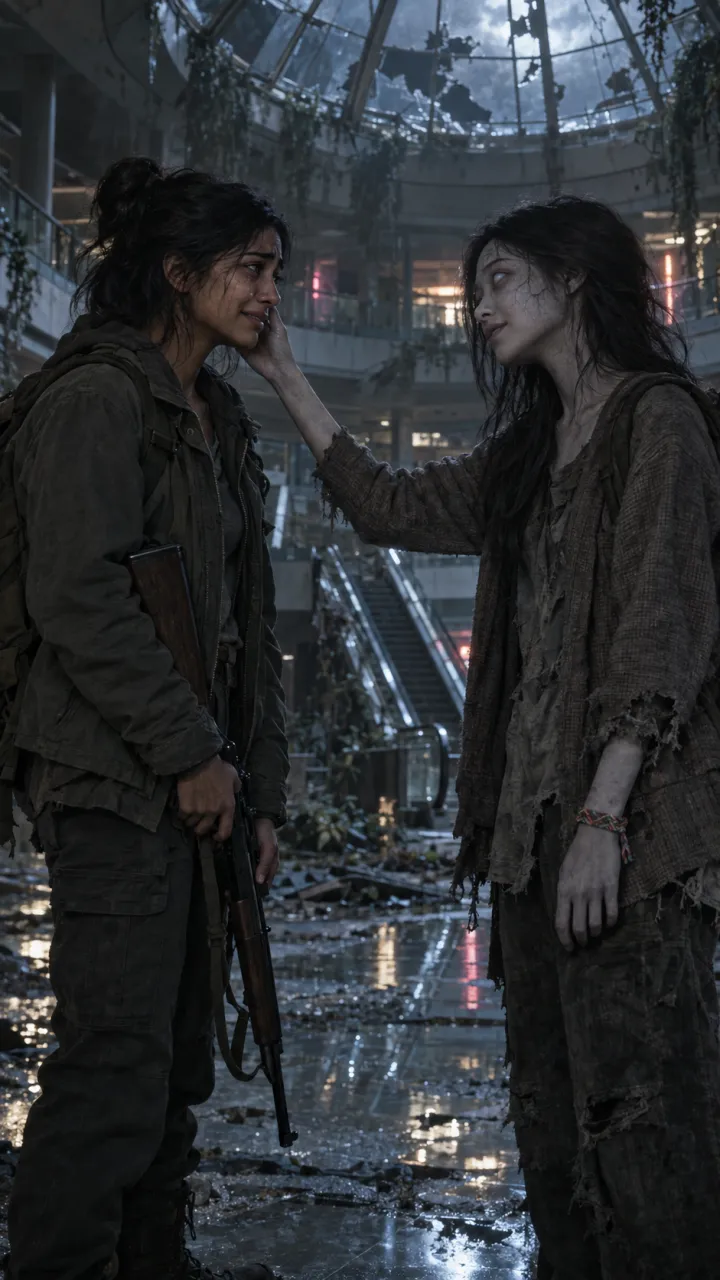
How to make the zombie trend in CapCut
Edit the AI zombie trend in CapCut: put the shots in order, land the hard cut on the beat, add a line and the sound, and export for TikTok.
4 min read · Updated

Two ways to use CapCut
CapCut is where most people finish the zombie trend. You can start from a CapCut template, by searching “zombie” in Templates and swapping your clips into someone else’s edit, or you can edit your own shots. Templates change from week to week; editing your own takes ten minutes and works whether your shots came from an AI video model or from our generator. This guide covers the second.
Button names move around between CapCut versions, so the steps below describe what to do rather than exactly where to tap.
What to have ready
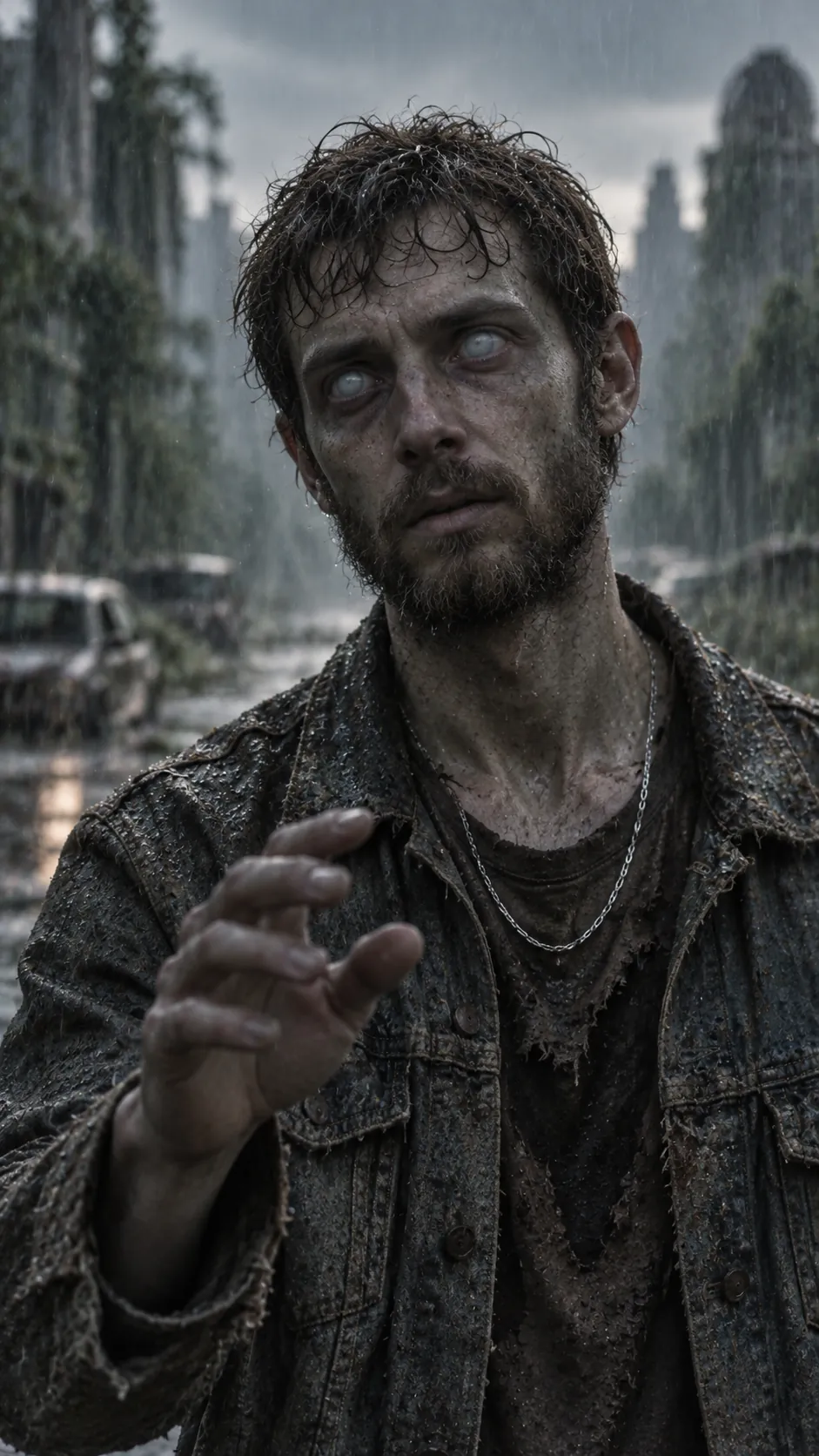
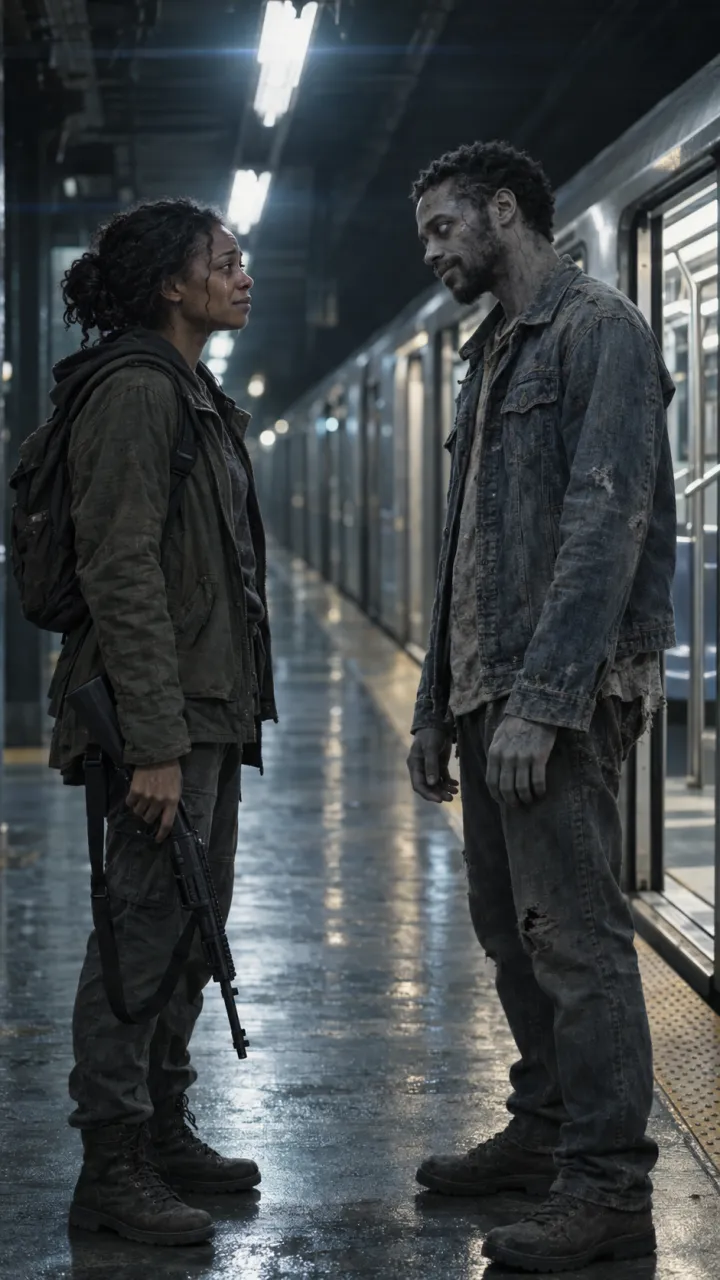
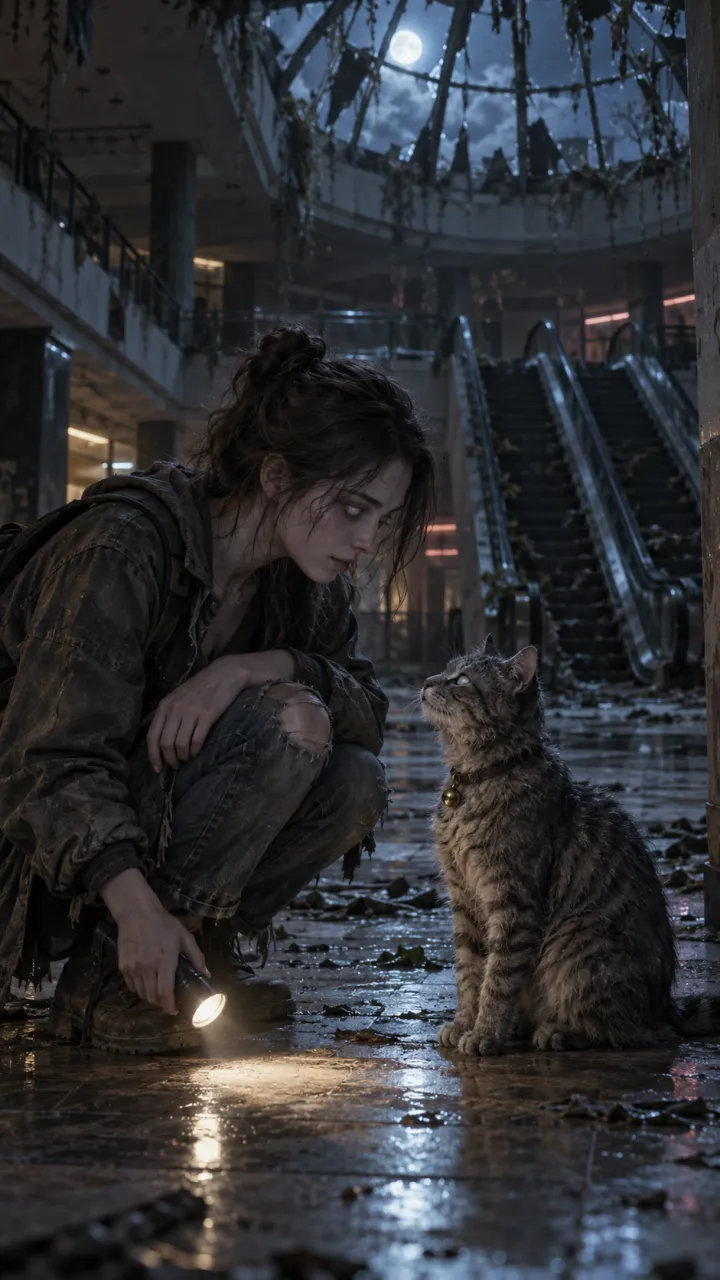
- The four shots, in 9:16: the choice, recognition, the embrace and the cut. The zombie love story prompts make them. Or one finished video.
- The line you want on screen, under six words.
- The sound you plan to use, if it isn’t the video’s own.
Step by step
- Start a new project and import the four shots in order.
- Trim them to about 4, 4, 3 and 4 seconds, so the whole video lands near 15 seconds.
- Remove any transition between the shots. The cut into the memory has to be hard: one frame grey, the next frame gold.
- Add the sound. Find the drop and slide the sound, not the video, until the drop sits on the cut.
- Add your line as text over the embrace, held for about two seconds. Keep it in the middle of the frame, clear of the caption area at the bottom and the buttons on the right.
- Optional: pull the colour down a little on the first three shots and warm up the last. The bigger the gap, the harder the cut lands.
- Export at the resolution of your clips or higher, at 30 frames per second, and post the file natively rather than as a link.
If your video is from AI Zombie
It arrives as one 15-second MP4 with sound and the cut already in place, so leave the timing alone. In CapCut you only add the on-screen line and, if you want the trending sound, add it and turn the original sound down. The captions and sounds guide has lines to use.
Common mistakes
- A crossfade into the memory. It softens the one moment that should be sharp.
- Cutting too late. The memory needs at least three seconds to register.
- Text over faces. Recognition happens in the eyes.
- A caption that gives the ending away. Let the cut be the surprise.
Questions
Is there a CapCut template for the zombie trend?
Yes. Search “zombie” in CapCut’s Templates tab and swap your clips in. Templates change from week to week, so editing your own four shots, which takes about ten minutes, is the more reliable route.
How long should each shot be in the zombie trend edit?
About 4, 4, 3 and 4 seconds for the choice, recognition, the embrace and the memory, so the video lands near 15 seconds. Leave at least three seconds after the cut for the memory to register.