How to make the zombie trend with Gemini
Make the AI zombie trend with Google Gemini: the two stills, the two 8-second Veo clips, the prompts to paste, and how to join them with a hard cut.
5 min read · Updated
What Gemini can and can’t do here
Gemini makes video with Google’s Veo model. According to Google’s help page, each video in the Gemini app is 8 seconds long, takes a minute or two, and needs a Google AI Pro or Ultra plan. The zombie trend runs about 15 seconds and turns on a hard cut from a cold scene to a warm memory, so in Gemini you make it as two clips and join them yourself.
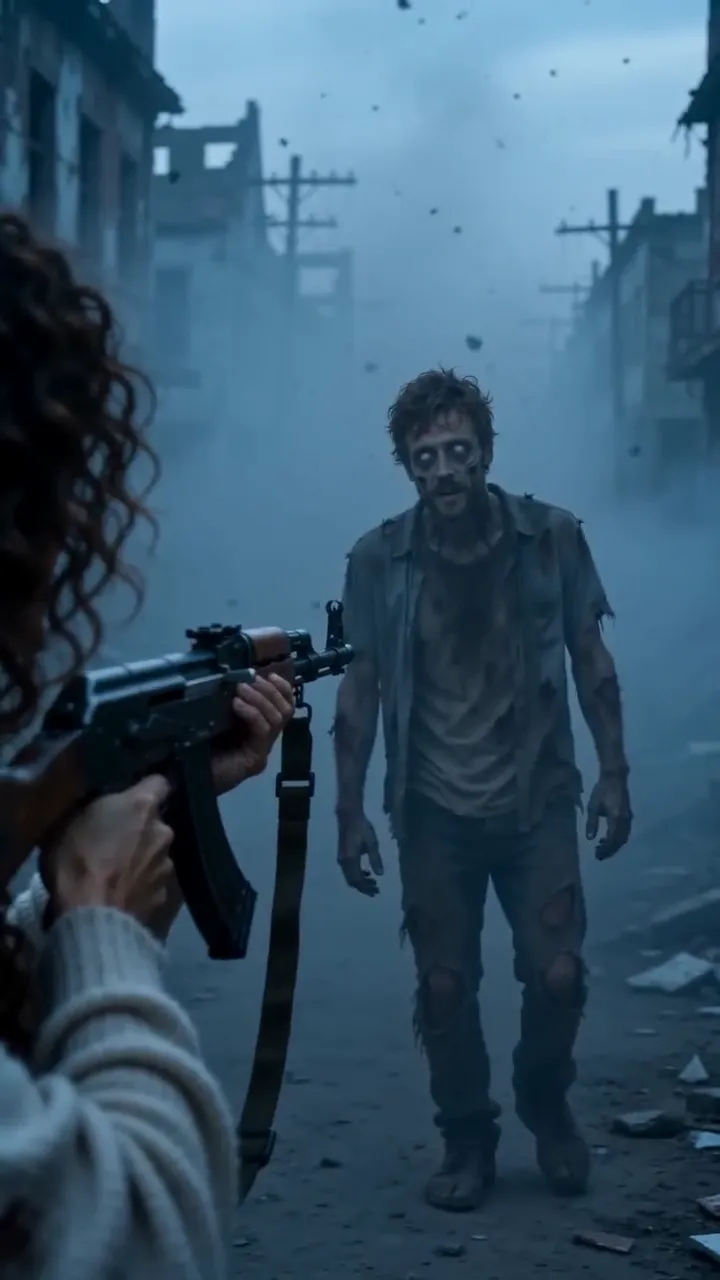
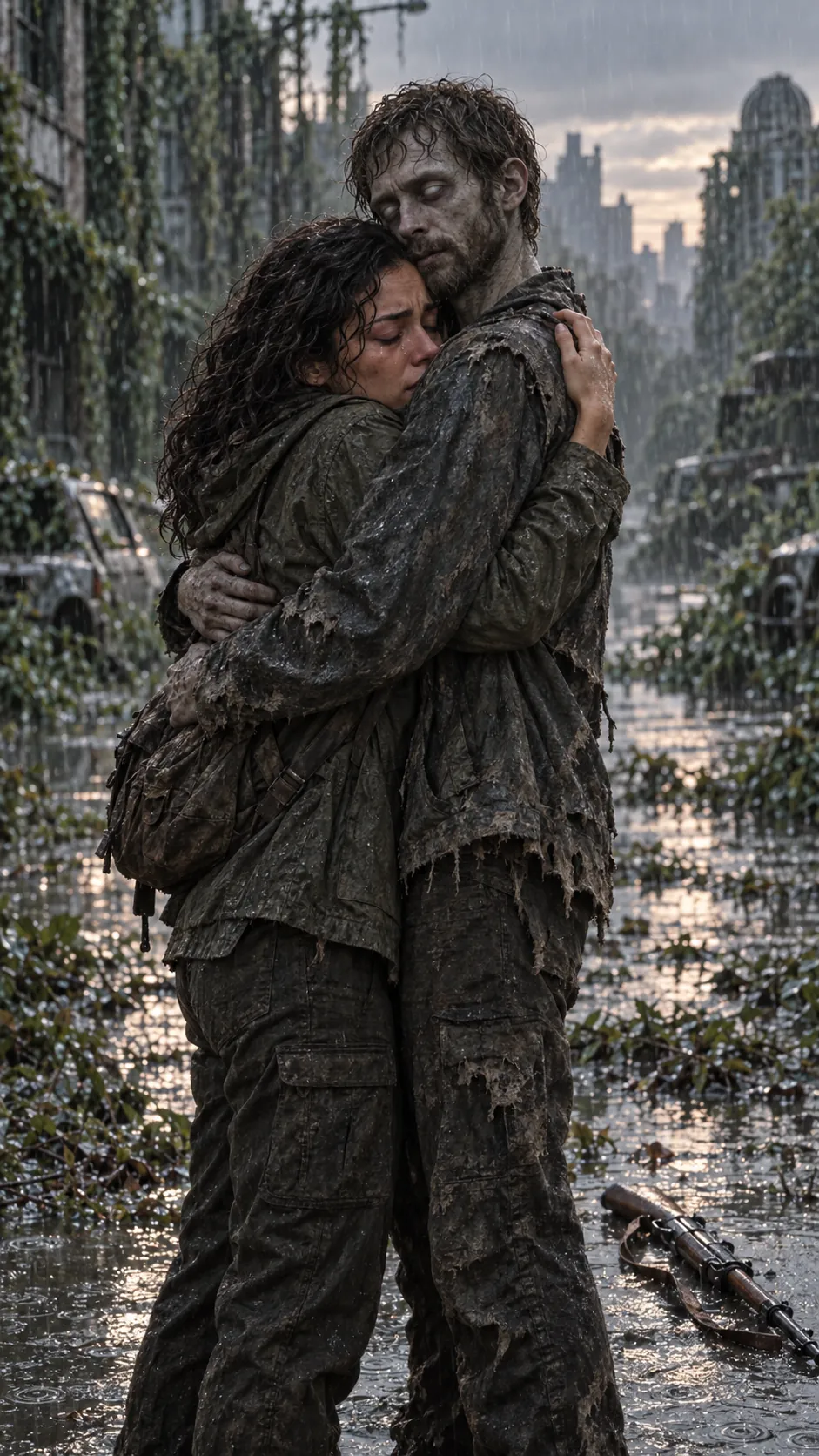
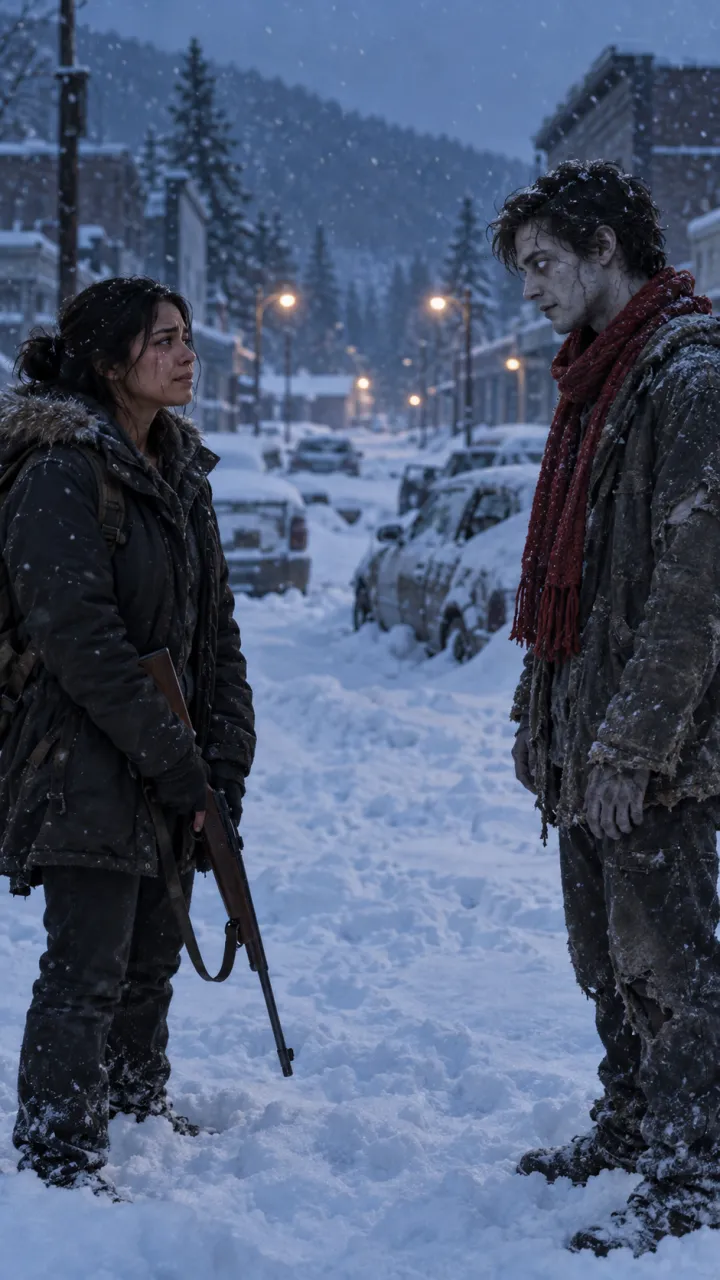
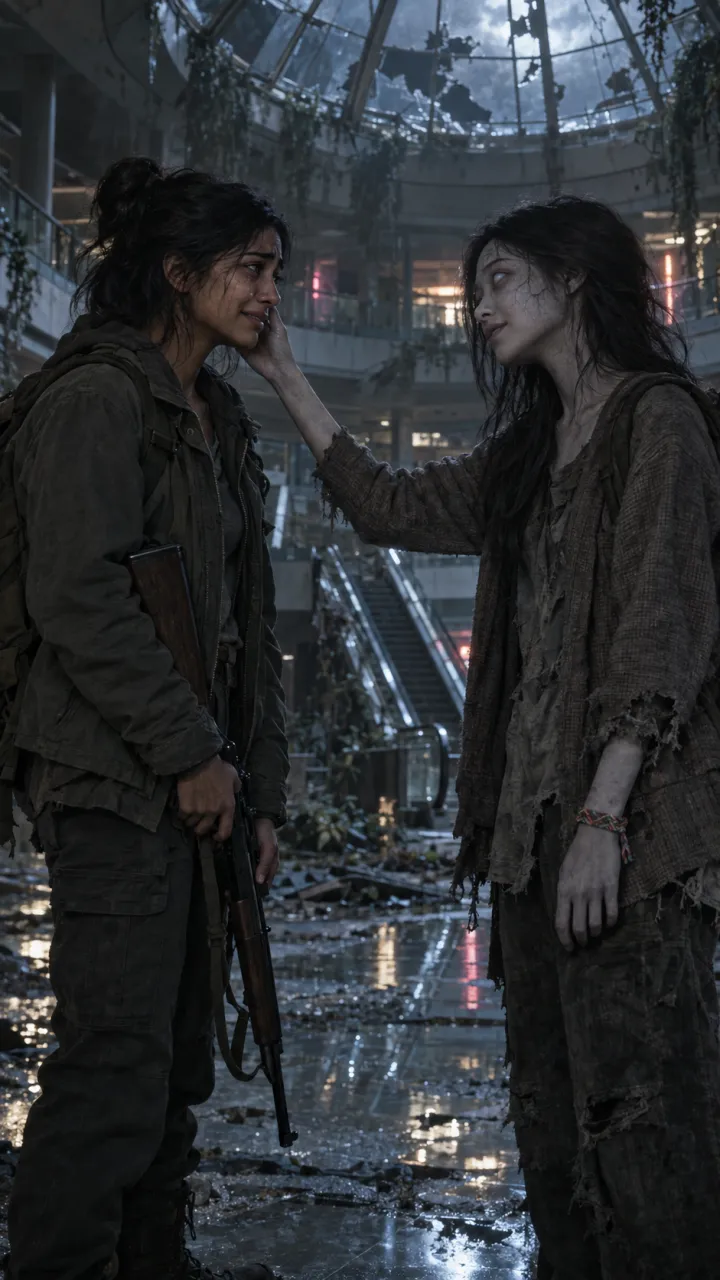
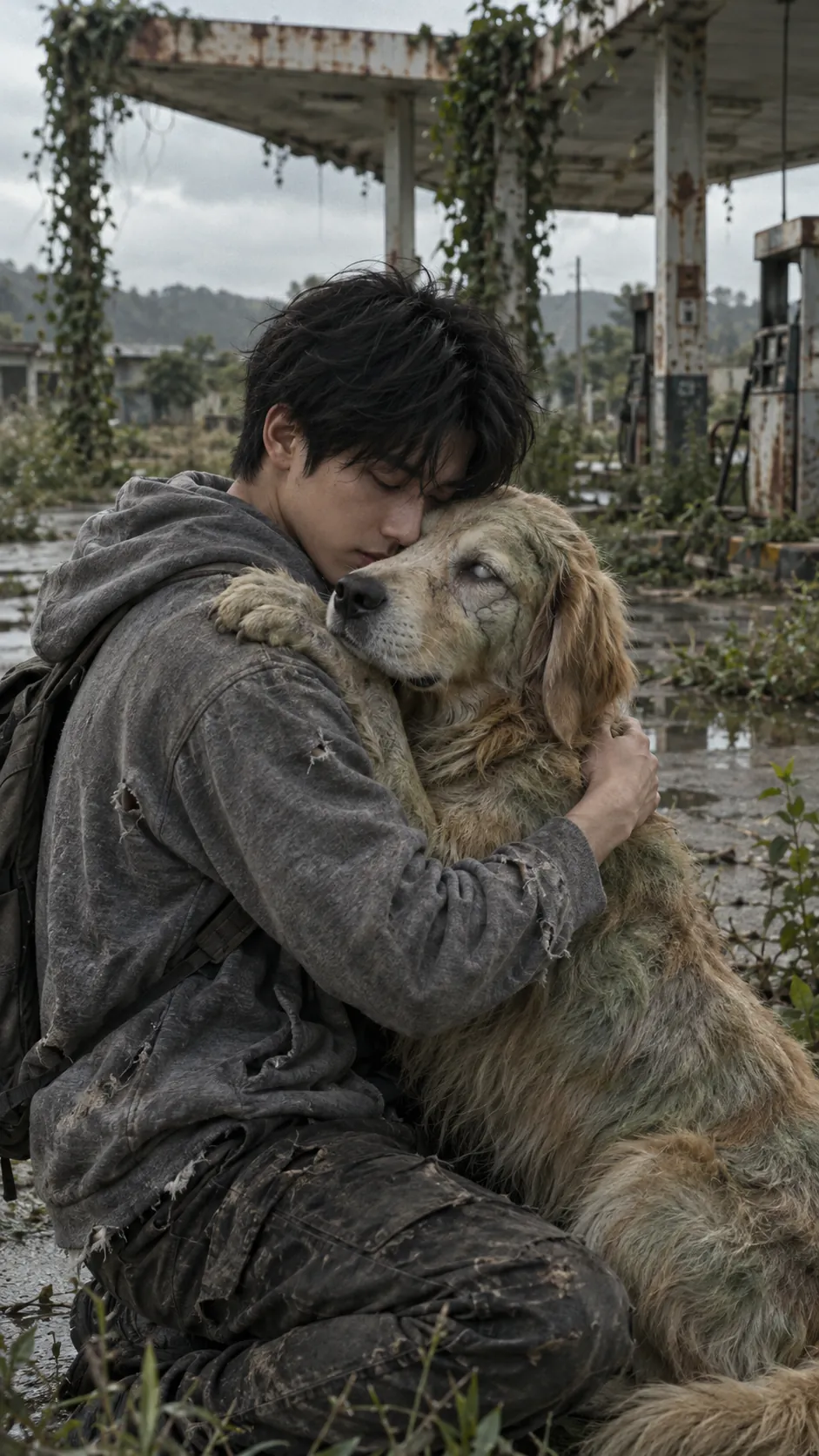
- Clip 1, the cold side: one person faces the other, who has turned, then lowers the weapon and holds them.
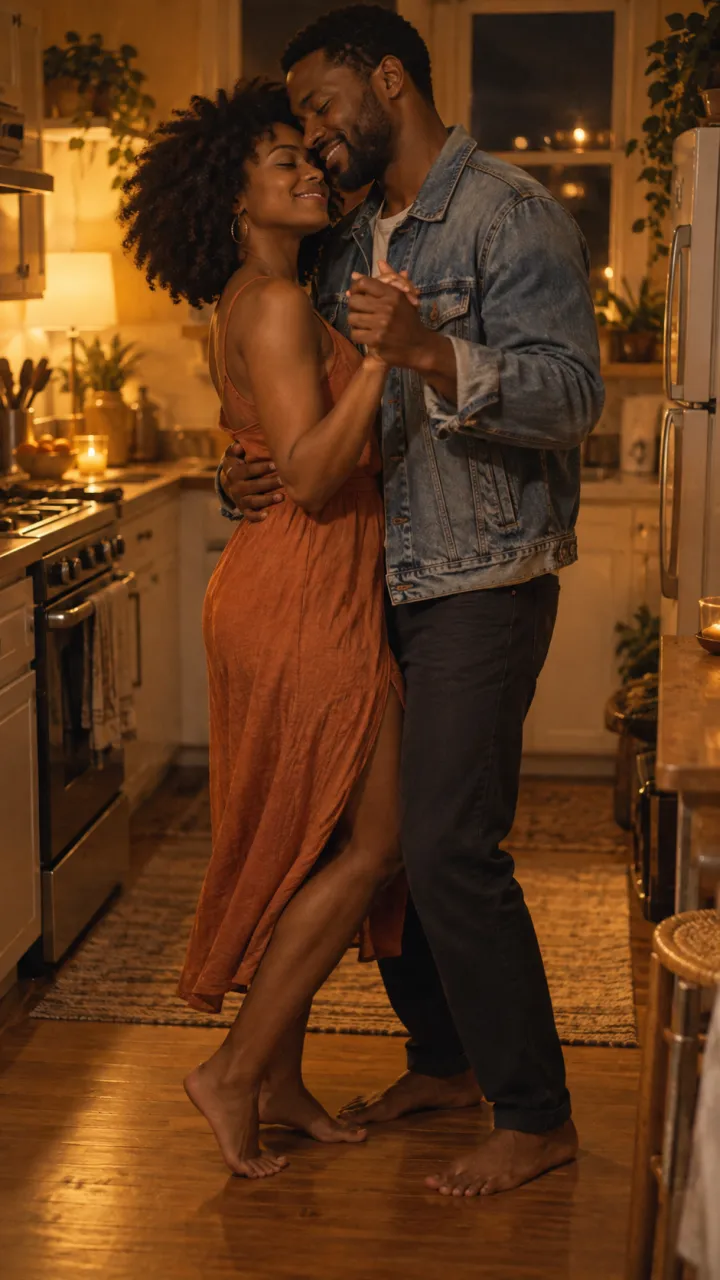
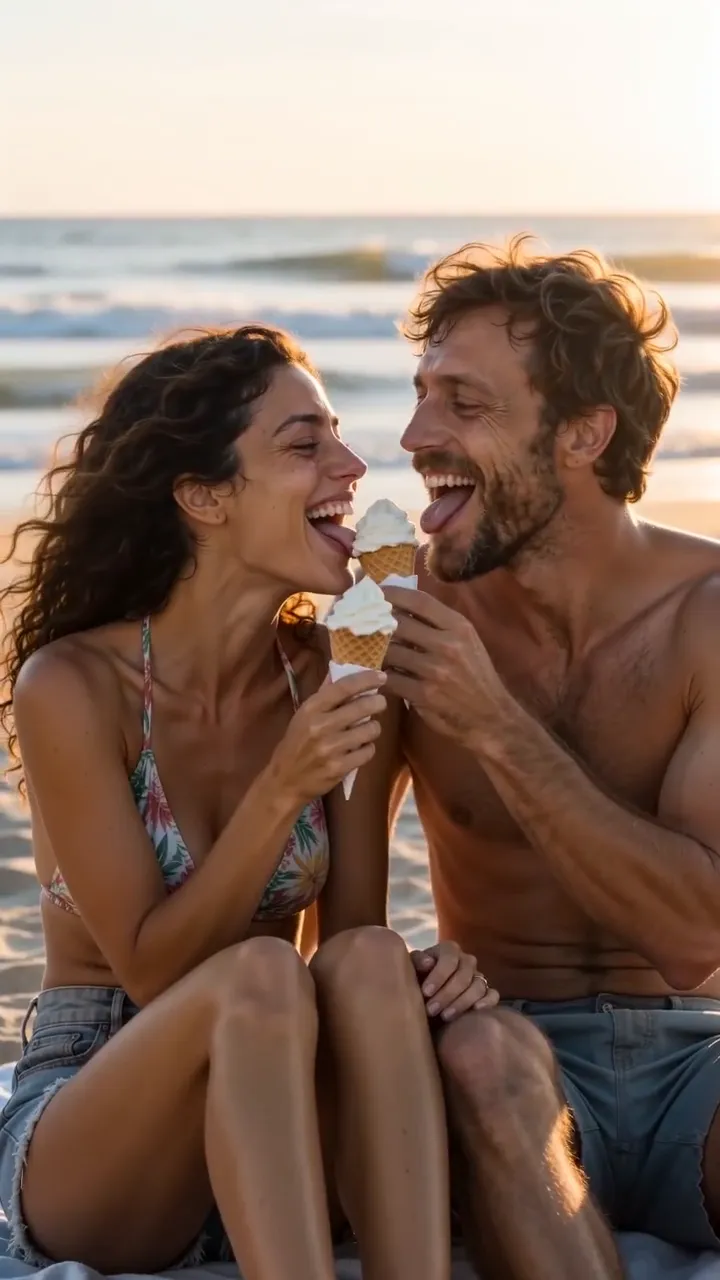
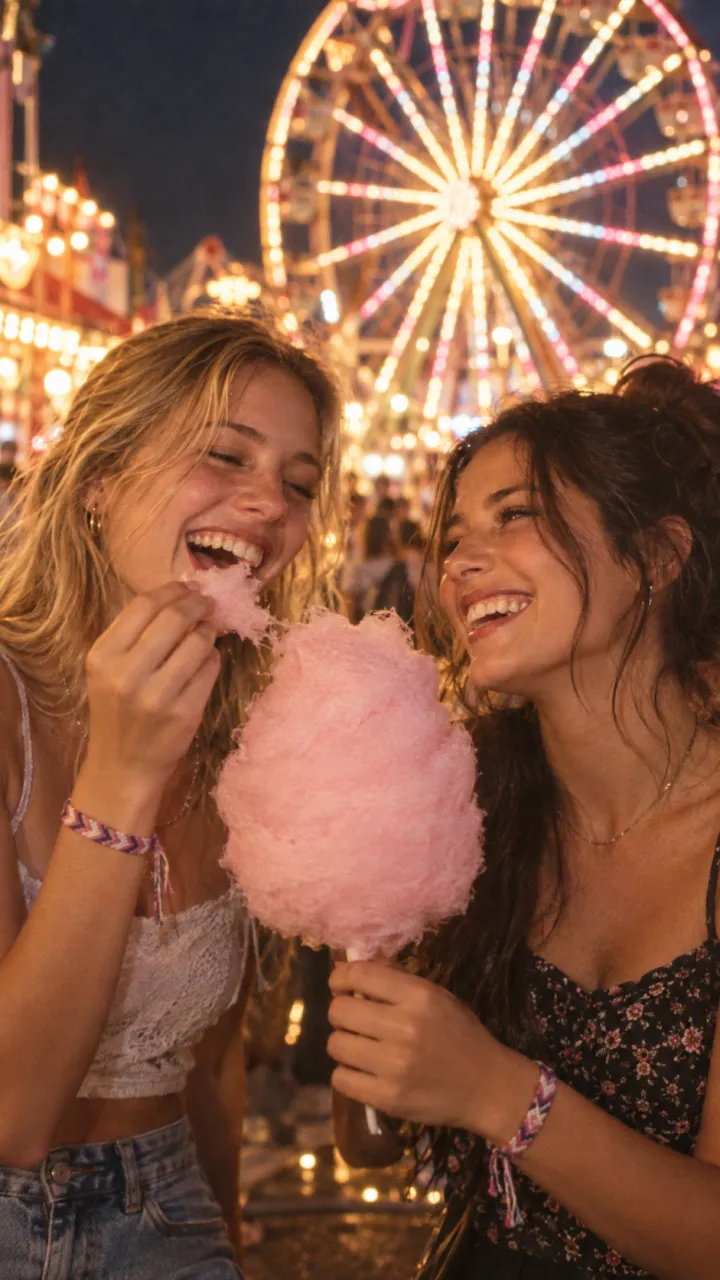
- Clip 2, the warm side: the same two people, alive, in a happy memory.
- The cut: the last frame of the embrace, then straight into the memory, with no transition.
Step 1: make two start frames
Ask Gemini for an image, attach one clear photo of each person, and paste the prompt. The stills fix the faces, clothes and setting before any video is made, which is what keeps the two clips looking like the same people. The best photos guide covers which photos to use.
Cold still
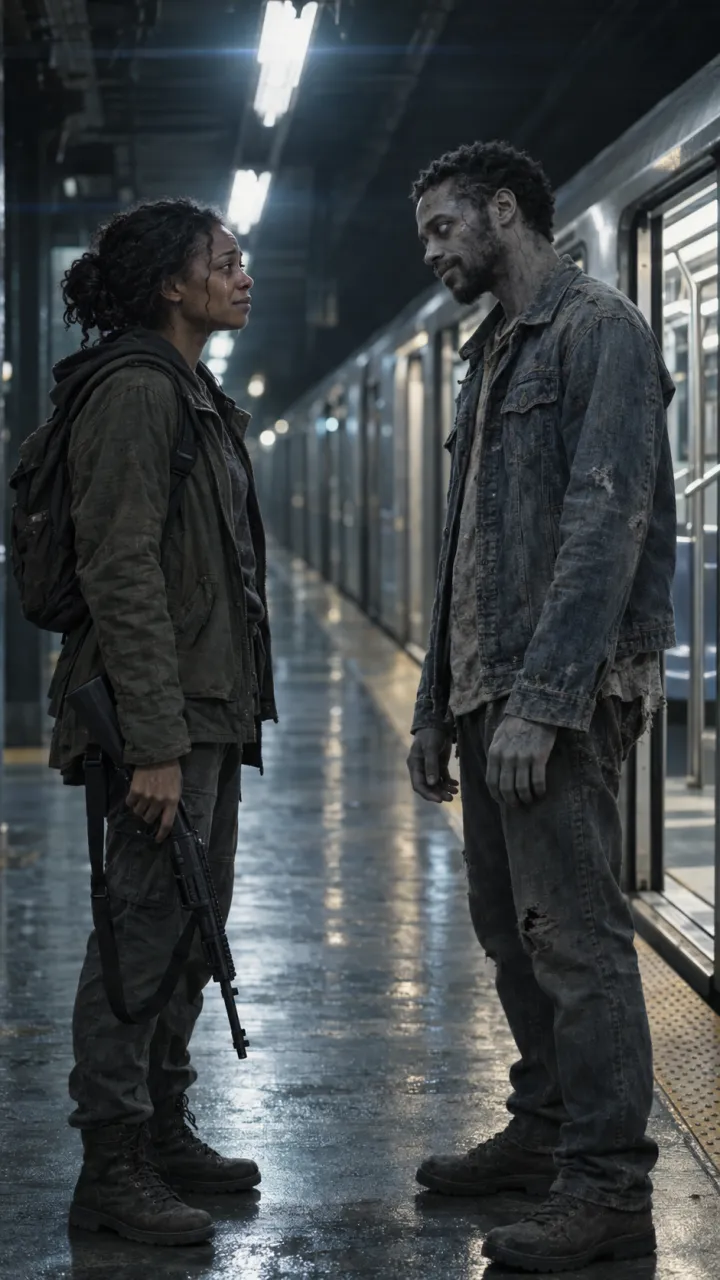
Using the two attached photos, make a vertical 9:16 film still. The person from the first photo stands in an empty city street at dusk, ash drifting in cold blue-grey light, holding a rifle pointed at the ground. A few metres away stands the person from the second photo, turned into a zombie: pale grey skin, clouded white eyes, torn clothes, calm and still. Keep both faces exactly as in the photos. Cinematic, shallow depth of field, PG-13, no blood, no text.
Warm still
Using the same two photos, make a vertical 9:16 film still of both people, alive and happy, laughing together on a beach at golden hour, warm amber light, candid and close. Same faces, hair and clothes as the photos. Cinematic, 35mm film grain, no text.
Step 2: turn each still into an 8-second clip
Start a video in Gemini, upload the still as the starting image and paste the matching prompt. Describe what moves and what the camera does; the still already holds what they look like.
Cold clip
Slow push-in. The survivor raises the rifle, hands shaking, then recognises the turned person and slowly lowers it. The turned person takes two slow steps closer. The survivor drops the rifle and pulls them into a tight hug, eyes closed. Cold blue light, ash falling, quiet wind and a low heartbeat. No dialogue, no blood.
Warm clip
Handheld, warm golden-hour light. The two of them laugh and spin around in a hug on the beach, then lean their foreheads together. Waves, wind and soft laughter. Natural, joyful, no dialogue.
Make two or three takes of each and keep the ones where the faces hold. Download the files, since the cut happens outside Gemini.
Step 3: join the clips with a hard cut
- Put both clips in a 9:16 project in CapCut or any editor, cold clip first.
- Trim the cold clip so it ends on the embrace, and the warm clip so the memory lasts at least four seconds.
- Leave no transition between them. One frame grey, the next frame gold.
- Add a short line over the embrace and a sound with a drop on the cut. The CapCut guide has the timing.
The one-step route
If you don’t have a Gemini plan or don’t want to edit, AI Zombie takes the same two photos and returns one 15-second video with sound and the cut already in place. You choose who turns and the setting; there is nothing to join.
Questions
Can Gemini make the whole zombie trend video in one go?
Not in one clip. Videos made in the Gemini app are 8 seconds long, and the trend needs a cold scene and a warm memory joined by a hard cut. Make two clips, one per side of the cut, and join them in an editor such as CapCut.
Do I need a paid Gemini plan for the zombie trend?
For the video clips, yes. Google says video generation in the Gemini app needs a Google AI Pro or Ultra plan, and there is a limit on how many videos you can make. The stills can be made with Gemini’s image generation.
Why does my Gemini zombie video look like someone else?
Each clip is generated on its own, so faces drift between them. Start both clips from stills made with the same reference photos, describe each person the same way in both prompts, and make two or three takes of each clip.